
WELCOME
YOUR TEMPLATE GUIDE

Welcome to Your Squarespace Template Journey!
Thank you for choosing one of my custom Squarespace templates to build your beautiful new website. I’m here to ensure your experience is as seamless and enjoyable as possible.
First things first, there’s a template-specific video tutorial (below) that walks you through the basics of your template workspace, and shows you the unique features related to this specific design.
If you need a deeper dive into the ins and outs of Squarespace—beyond the specifics of your template—we’ve got you covered. I’ve partnered with Rachel of Square Stylist, a master Squarespace educator, who has created an incredible instructional hub called the Template Wizard. This resource offers comprehensive tutorials covering every aspect of Squarespace, from basic setup to advanced features. There’s even a search bar for finding specific topics quickly, and an amazing AI assistant for immediate help.
As my valued client, you’ll receive free access to this resource, saving you time and ensuring you have everything you need to build a stunning website with confidence.
Outside of these resources, I’m still here to help with any questions or guidance specific to your template for the next 30 days, though the support portal. My goal is to make sure you feel supported every step of the way.
Asha Glenn Design
HOW TO ACCESS YOUR TEMPLATE
GET YOUR TEMPLATE
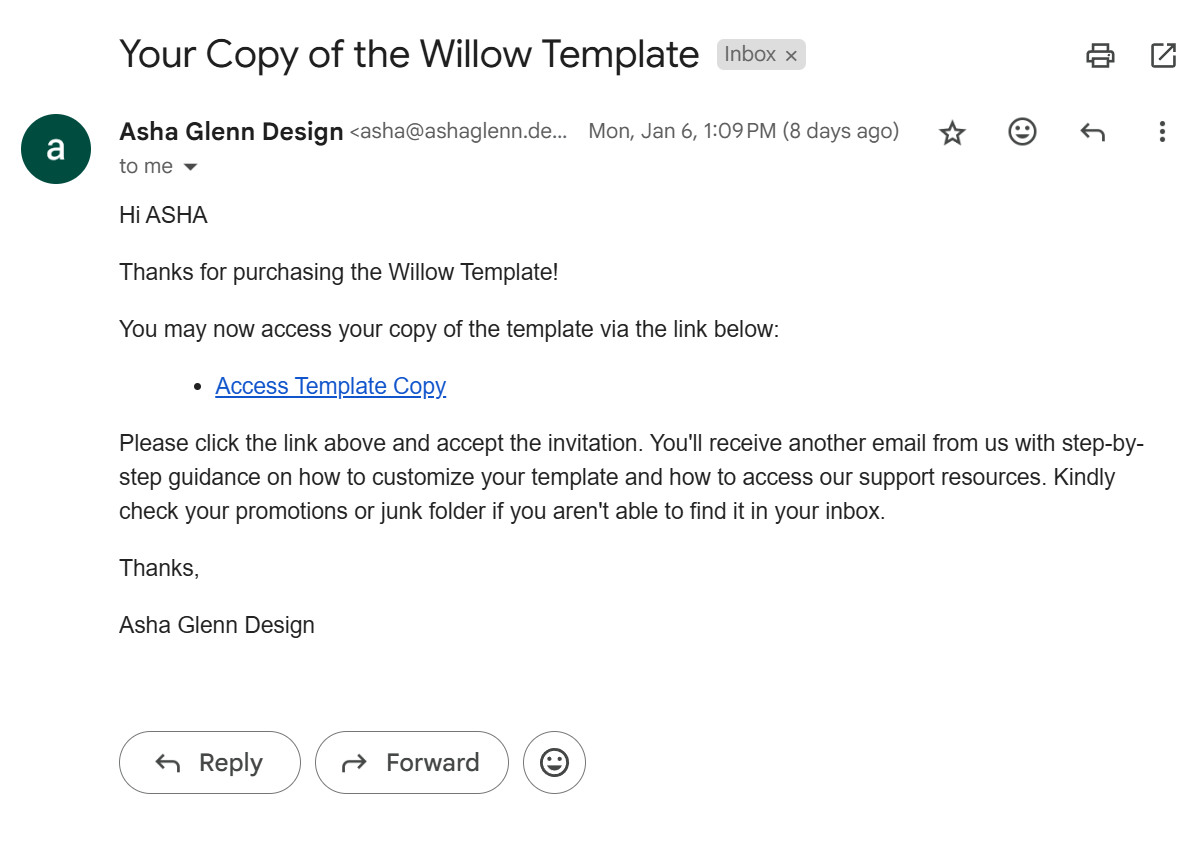
After your purchase, you’ll receive this email granting you access to your brand new website template. Open the email and click the link that says “Access Template Copy”.
2. CREATE YOUR SQUARESPACE ACCOUNT
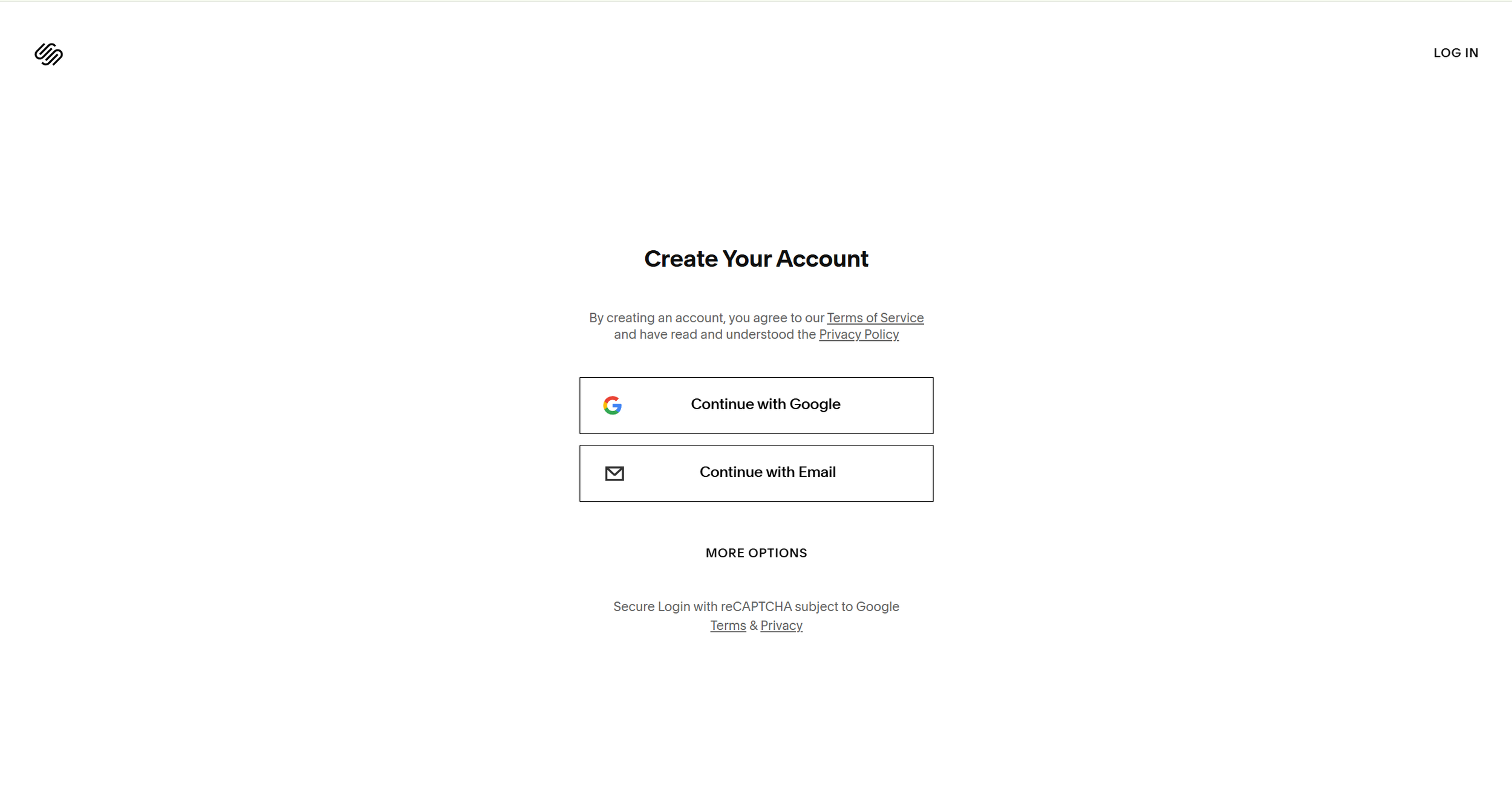
After clicking on “Access Template Copy” it will prompt you to create a username and password for Squarespace. If you already have a Squarespace account, it will open, and you will see the template in your dashboard.
3. ENTER YOUR TEMPLATE
Immediately after creating your Squarespace account, you’ll be brought to this screen. This is the website project area where you customize your website.
If you already had an account, it may have redirected you instead to the dashboard area containing all of your website projects (imaged below).

4. THE SQUARESPACE DASHBOARD
This is what the Squarespace Dashboard look like. You may be brought here after clicking on “Accept Invitation” instead of the website project area.
From here, click on the website to enter the website project area.

Visit the Template Wizard
Please use the password: squarestyliststandout to access the wizard
The Template Wizard is our knowledge base for Squarespace Templates. Please go through the “Getting Started” and “Customization Essentials” video tutorials to equip you in customizing your template. These video lessons are short with just the right amount of information to help you launch your website the soonest.
Click "Copy Text" to quickly grab the password
Getting Support
For instant support 24/7, we recommend using the “Ask” button in the Template Wizard to help point you relevant resources.
But if you have template specific questions, you may reach us by submitting a ticket through the form below.
Click below to access the AI Copy Guide. This document provides instructions for using Chat GPT to help you generate brand-specific copy for your brand. If you’re comfortable with AI, this can help you prepare copy super fast.