
How to Set Up Your Five Brand Colors in Squarespace

If you've ever customized a Squarespace website, you've probably noticed that you're asked to choose five brand colors. But what do those five colors actually represent?
Many people assume they're simply choosing five colors they like. In reality, Squarespace assigns a specific role to each color in your palette. The order matters because Squarespace uses these colors to automatically generate beautiful color themes throughout your website.
Understanding what each color is meant to do will make it much easier to build a cohesive, professional-looking brand.
Why the Order of Your Colors Matters
The five colors in your Squarespace Brand Colors palette are arranged from left to right, with each one serving a different purpose.
Rather than thinking of them as five random colors, think of them as the foundation of your website's design system.
Color 1: Main Background Color
Your first color is your primary background color.
This is typically the lightest color in your palette and serves as the main background throughout your website. Most brands choose white, ivory, cream, or another soft neutral to create a clean, timeless look.
Color 2: Secondary Light Background Color
Your second color is the secondary light background color.
This color works alongside your primary background to add subtle contrast between sections while keeping your website cohesive. It's often another light neutral that complements your main background color.
Color 3: Primary Accent Color
Your third color is the primary accent color.
This is usually your main brand color and is used to bring personality to your website. It helps draw attention to important elements while reinforcing your brand identity. This color is often used as the primary button background color, as well as the color used for links and highlights.
Color 4: Secondary Dark Background Color
Your fourth color is the secondary dark background color.
Think of this as a supporting brand color. It complements your primary accent color and adds depth and variety to your design without overwhelming it.
Color 5: Primary Text Color
Your fifth color is the primary text color.
This should be the darkest color in your palette to ensure excellent readability across your website. Instead of using pure black, many brands choose a deep charcoal or rich brown for a softer, more refined appearance. Along with text, this color is often used as the primary link, highlight, and button background color as well.
Seeing Your Brand Colors in Action
Now that you understand the purpose of each of the five brand colors, let's look at how they're actually applied throughout a Squarespace website.
In the example below, I have provided the color palette used for the website along with screenshots of the site. You can see that this website primarily uses the secondary light and secondary dark background colors as the dominant design colors.

Notice how the remaining colors work together throughout the design:
The primary accent color is used for buttons and other important calls to action.
The primary text color keeps everything easy to read.
Together, the five colors create a polished, cohesive visual identity.
How Were These Colors Applied to the Website?
At this point, you may be wondering...
"If the website is using the secondary background colors throughout the design, did you have to manually choose those colors for every section?"
The answer is no.
One of the things I love most about Squarespace is something called Color Themes.
After you've strategically set up your five brand colors, Squarespace automatically generates a collection of Color Themes based on the placement of those colors in your palette. Each Color Theme applies your colors in a different way, giving you several professionally coordinated design options to choose from.
For example, one Color Theme might use your main background color as the section background, while another might use your secondary background color instead. Some themes are light and airy, while others are darker and more dramatic.
In the example above, I chose a Color Theme that uses the secondary background color as the dominant color throughout much of the website. I didn't have to manually assign colors to each individual section. Instead, I simply selected the Color Theme I wanted for each section, and Squarespace automatically applied the appropriate colors based on my five-color palette.
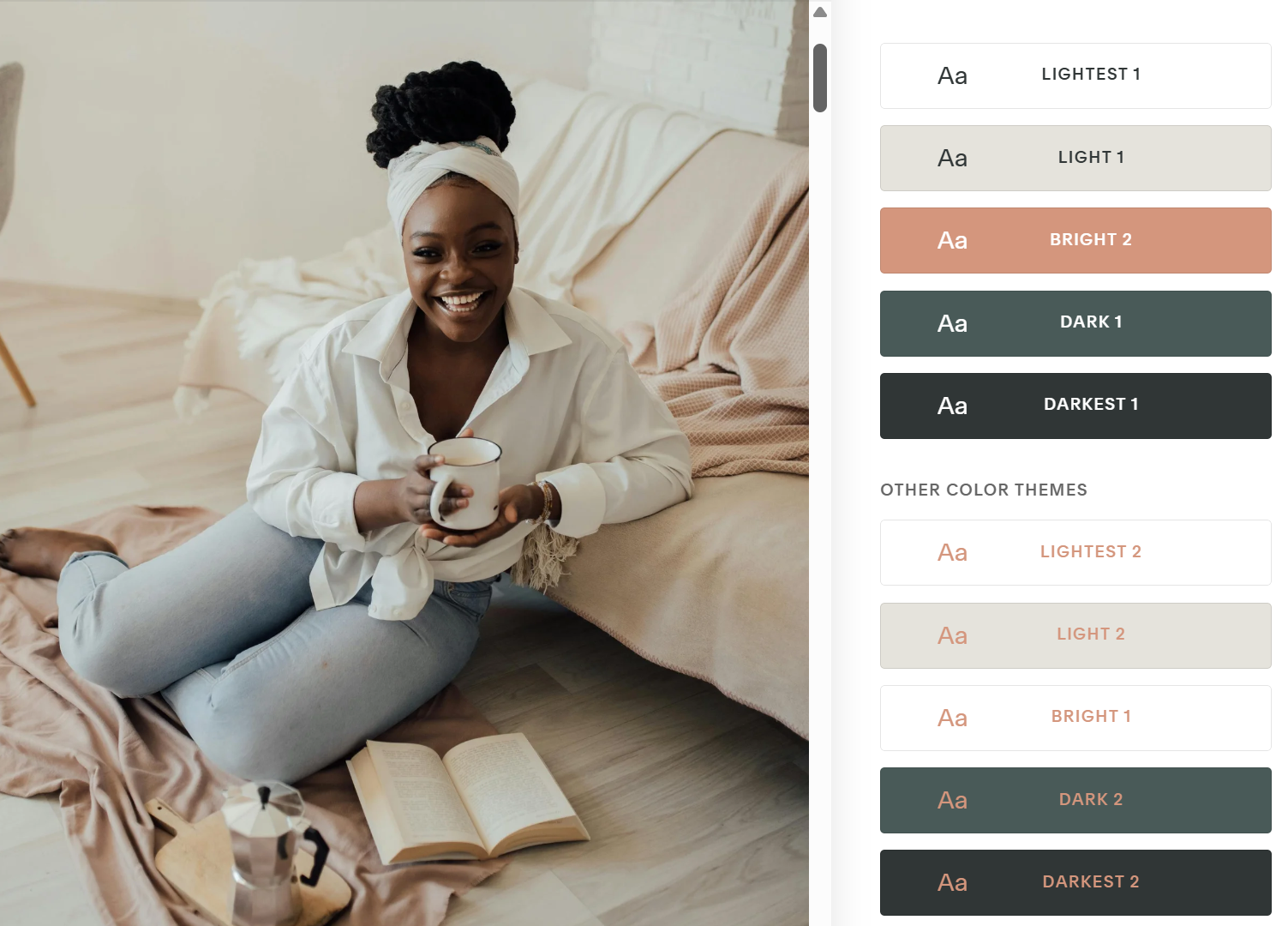
This image to the shows the Color Themes that Squarespace automatically generated after the five brand colors were strategically arranged within the Brand Color palette.
The first five Color Themes each use one of your five brand colors as the primary background color.
Lightest 1 uses your main background color.
Light 1 uses your secondary background color.
Bright 2 uses your primary accent color, making it a great choice for bold or colorful brands.
Dark 1 uses your secondary dark background color, creating additional depth and contrast.
Darkest 1 uses your primary text color as the background, making it ideal for sections where you want a dramatic, high-contrast look.
Below these are additional Color Themes generated by Squarespace. These provide even more design options while still using the same five brand colors, allowing you to mix and match themes throughout your website while maintaining a cohesive brand identity.
You Don't Have to Use Every Color Theme
Squarespace automatically generates multiple Color Themes, but that doesn't mean you need to use all of them.
In fact, many professionally designed websites use just two or three Color Themes repeatedly throughout the entire site. Reusing the same themes creates a polished, cohesive look and helps strengthen your brand identity.
Think of the generated themes as a library of design options. Choose the ones that best represent your brand and use them consistently throughout your website.
Every Color Theme Can Be Customized
If one of the automatically generated Color Themes isn't exactly what you're looking for, you can customize it.
Squarespace allows you to edit each Color Theme by changing how your five brand colors are assigned within that theme. This gives you complete control over the look of your website while still maintaining a consistent design system.
Think of your Brand Colors as the ingredients and your Color Themes as the recipes. Once you've chosen the right ingredients, Squarespace creates several beautiful combinations for you to use throughout your website.
By understanding the relationship between Brand Colors and Color Themes, you'll spend less time trying to figure out which colors to use for each section and more time creating a website that feels intentional, cohesive, and uniquely yours.

Start With Your Brand
Before choosing your five colors, it's important to think about your overall brand identity.
Your color palette should complement:
Your logo
Your brand personality
The emotions you want your business to communicate
The style of photography you'll use throughout your website
Your photos have a huge impact on the overall feel of your website, so your color palette should work alongside your imagery rather than compete with it.
If you're starting with only a logo, tools like Coolors or Canva's Color Palette Generator can help you build a complete color palette around your existing brand color.
Build a Website That Feels Cohesive
A beautiful website isn't about using more colors, it's about using the right colors intentionally.
By understanding how Squarespace organizes its five brand colors, you'll create a website that feels polished, balanced, and professionally designed from the very beginning.